Dell UltraSharp 2405FPW 24"1920x1200 5ms 16:10 DVI USB LCD Monitor | NO STAND 3mth Wty
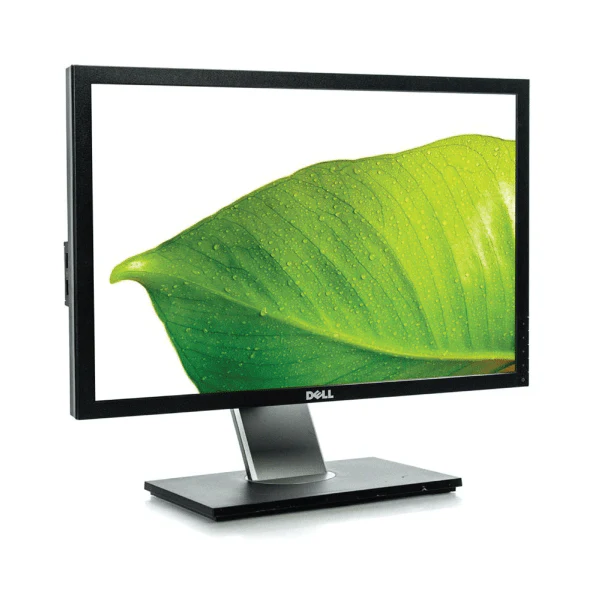
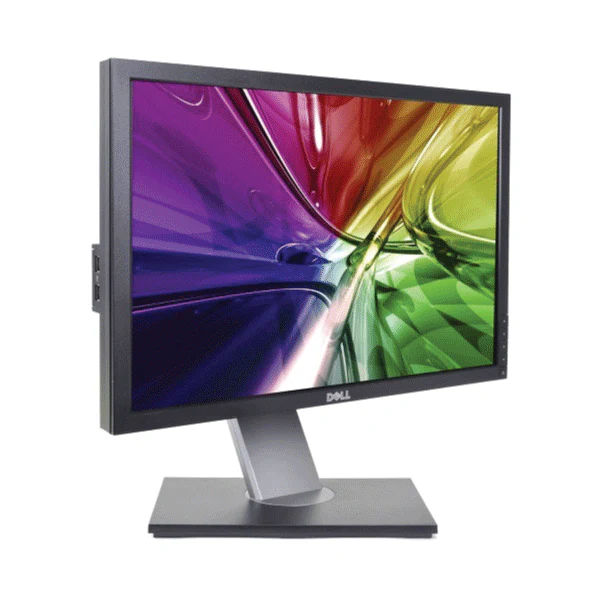
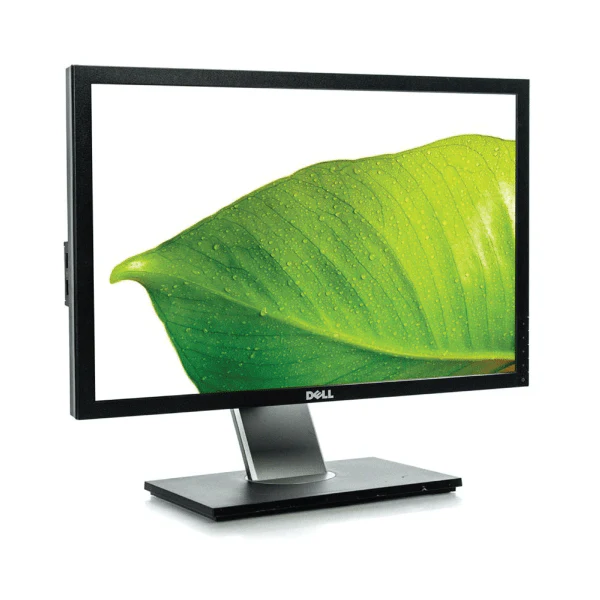
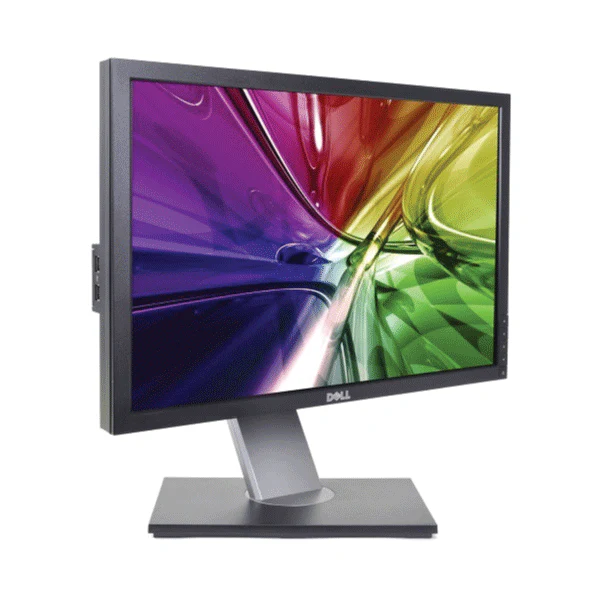
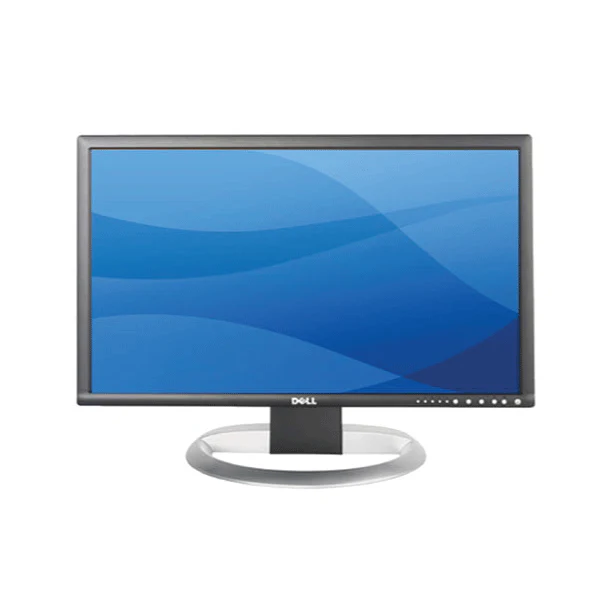
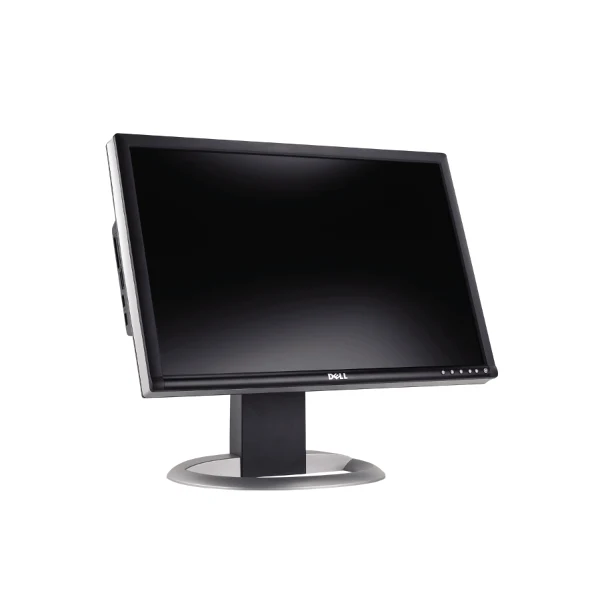
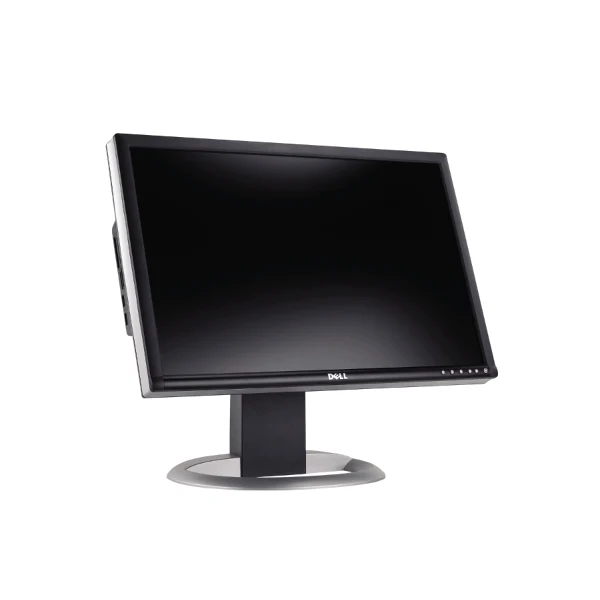
The UltraSharp 2405FPW's design is pure Dell, which is to say sturdy, circumspect, and unimpeachably up-to-date. In this case, it works well because the display's casing and stand seem to melt into the background, leaving the 24-inch-diagonal screen to carry the show. The dark-gray plastic bezel is a narrow 0.75-inch wide on all sides, and the six small, round buttons embedded in the bottom-right corner are unobtrusive enough for us to tolerate their being visible at all. The buttons power up the display, switch between inputs, launch the picture-in-picture window and menu, and navigate through the onscreen menu (OSM). Tiny numbers (one through five) in a row next to the buttons light up to help you navigate the settings.
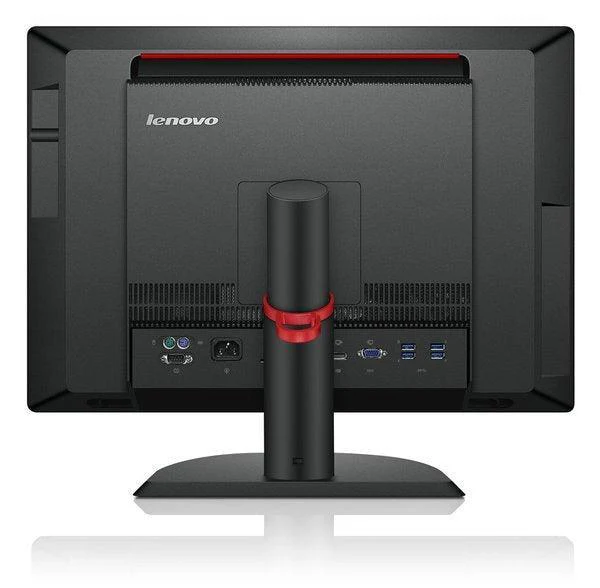
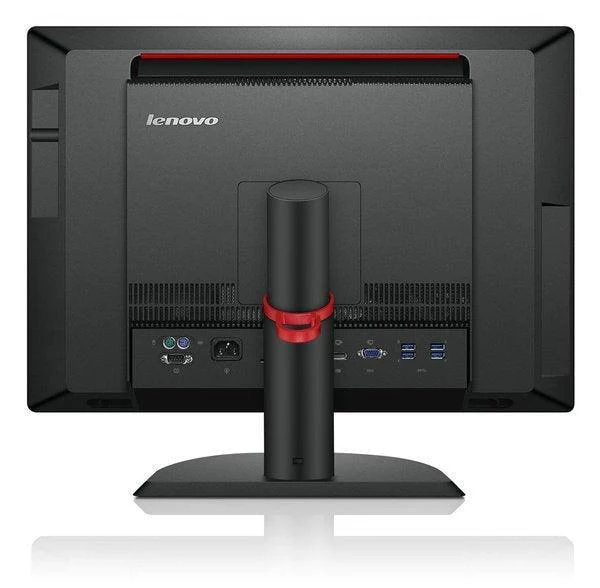
Along the back panel are easily accessible DVI, VGA, composite, component, and S-Video inputs, along with a 12V audio jack to which you can connect optional 14-watt Dell Sound Bar speakers that clip to the bottom bezel of the display. You'll also find an upstream USB port and two downstream USB ports for connecting peripherals. Hidden on the left edge of the bezel is an array of card slots for all of the popular flash-card formats, as well as two more downstream USB ports. To use the card slots, you must connect the upstream USB port to your PC (a USB cable is included). Once you do, Windows will recognize the slots as drives in My Computer, and you can view their contents or save data to them.
The Dell UltraSharp 2405FPW's OSM is easy to navigate, with all submenus arranged in a column. In addition to the usual adjustments for color temperature, brightness, and OSM position, there is a zoom function that lets you zero in on details in an image. The image looked quite blurry when we tried this, but it might come in handy if you're a movie extra trying to find yourself in crowd scenes. We were also impressed by the picture-in-picture (PIP) menu of the OSM. Not only can you choose from three sizes for the PIP window, you can also adjust the brightness, the contrast, and the hue. The display does picture-by-picture, which lays two equal-size screens side by side.
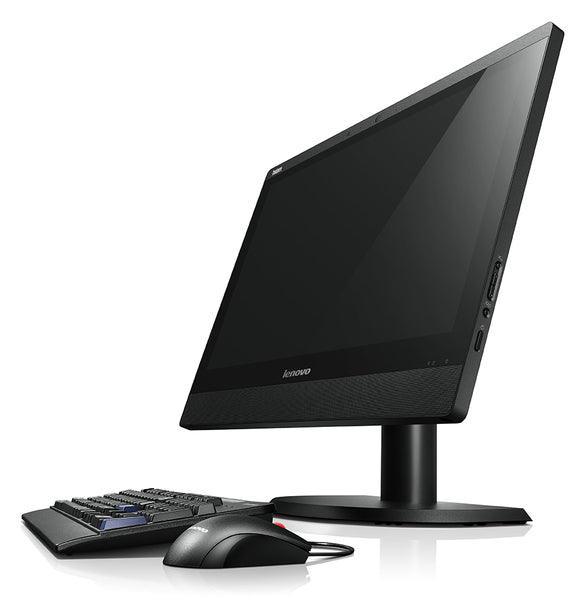
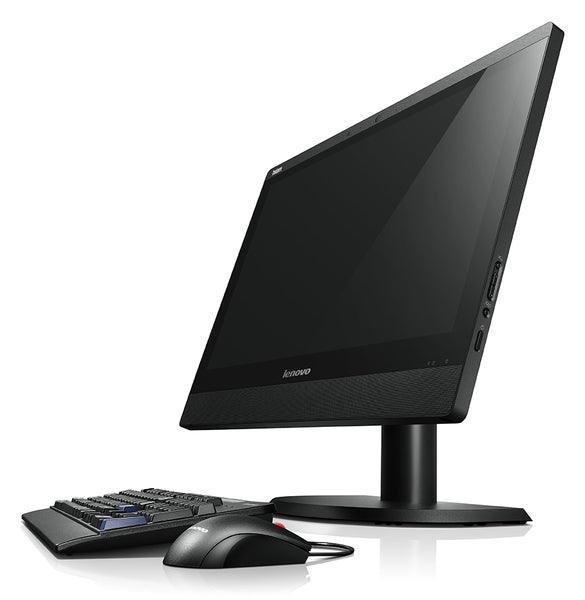
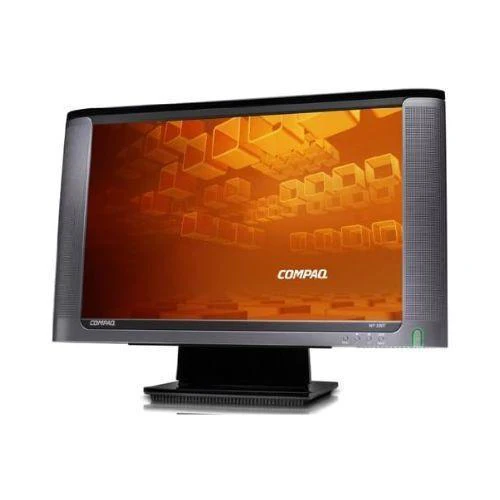
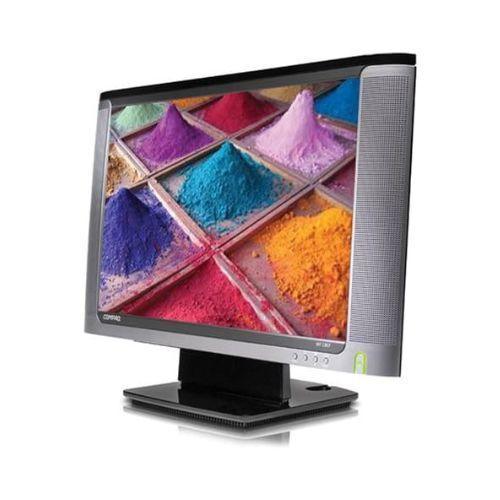
NOTE: THIS ITEM DOES NOT COME WITH A STAND/BASE. IMAGES USED ARE FOR ILLUSTRATIVE PURPOSES ONLY.
Product Information
Product Information
Shipping & Returns
Shipping & Returns
Description
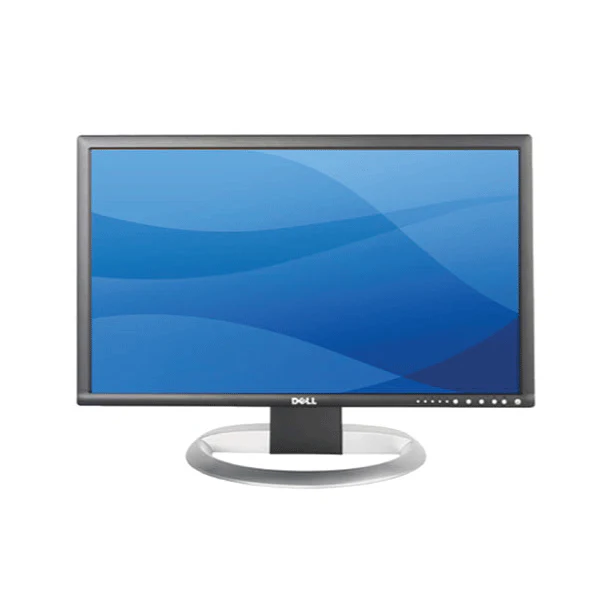
The UltraSharp 2405FPW's design is pure Dell, which is to say sturdy, circumspect, and unimpeachably up-to-date. In this case, it works well because the display's casing and stand seem to melt into the background, leaving the 24-inch-diagonal screen to carry the show. The dark-gray plastic bezel is a narrow 0.75-inch wide on all sides, and the six small, round buttons embedded in the bottom-right corner are unobtrusive enough for us to tolerate their being visible at all. The buttons power up the display, switch between inputs, launch the picture-in-picture window and menu, and navigate through the onscreen menu (OSM). Tiny numbers (one through five) in a row next to the buttons light up to help you navigate the settings.
Along the back panel are easily accessible DVI, VGA, composite, component, and S-Video inputs, along with a 12V audio jack to which you can connect optional 14-watt Dell Sound Bar speakers that clip to the bottom bezel of the display. You'll also find an upstream USB port and two downstream USB ports for connecting peripherals. Hidden on the left edge of the bezel is an array of card slots for all of the popular flash-card formats, as well as two more downstream USB ports. To use the card slots, you must connect the upstream USB port to your PC (a USB cable is included). Once you do, Windows will recognize the slots as drives in My Computer, and you can view their contents or save data to them.
The Dell UltraSharp 2405FPW's OSM is easy to navigate, with all submenus arranged in a column. In addition to the usual adjustments for color temperature, brightness, and OSM position, there is a zoom function that lets you zero in on details in an image. The image looked quite blurry when we tried this, but it might come in handy if you're a movie extra trying to find yourself in crowd scenes. We were also impressed by the picture-in-picture (PIP) menu of the OSM. Not only can you choose from three sizes for the PIP window, you can also adjust the brightness, the contrast, and the hue. The display does picture-by-picture, which lays two equal-size screens side by side.
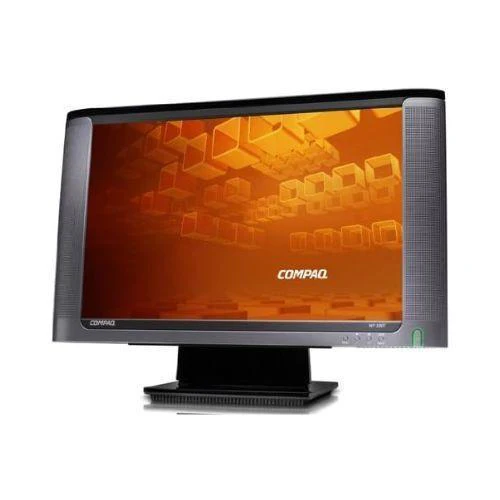
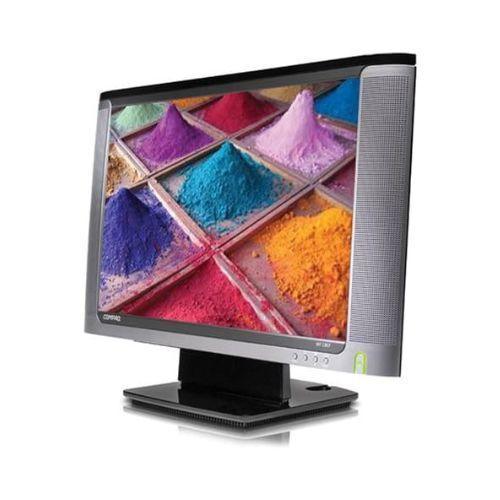
NOTE: THIS ITEM DOES NOT COME WITH A STAND/BASE. IMAGES USED ARE FOR ILLUSTRATIVE PURPOSES ONLY.